
Requirements
- WordPress 6.4 or newer.
- PHP 7.4 or newer.
- GeneratePress 3.x, active as the theme or as the parent of your child theme.
- GP Premium and GenerateBlocks are not required.
Install the plugin
- Download the plugin zip from your purchase email or from the customer portal. See Downloads (Safari users: keep the file zipped).
- In WordPress, go to Plugins → Add New Plugin → Upload Plugin.
- Choose the zip file and click Install Now.
- Click Activate Plugin.
Activate your licence
After you activate the plugin, WordPress opens the licence activation screen. Enter the licence key from your purchase email and click Agree & Activate License.
- If you bought a Generate Market child theme, Enhance for GP is included and the same licence covers both on that site.
- Your key is also listed under Licenses in the customer portal.
- Moving to another site, staging sites and lost keys: see Licences and activation.
Updates
While your licence is active, updates appear under Dashboard → Updates and on the Plugins screen like any other plugin update.
What your licence includes (sites, updates, support) is explained on the Licence page.
Find the options
- Make sure GeneratePress (or a GeneratePress child theme) is your active theme.
- Go to Appearance → Customize.
- Open Layout for most options. Theme Design, Icons and Admin are separate sections at the top level.
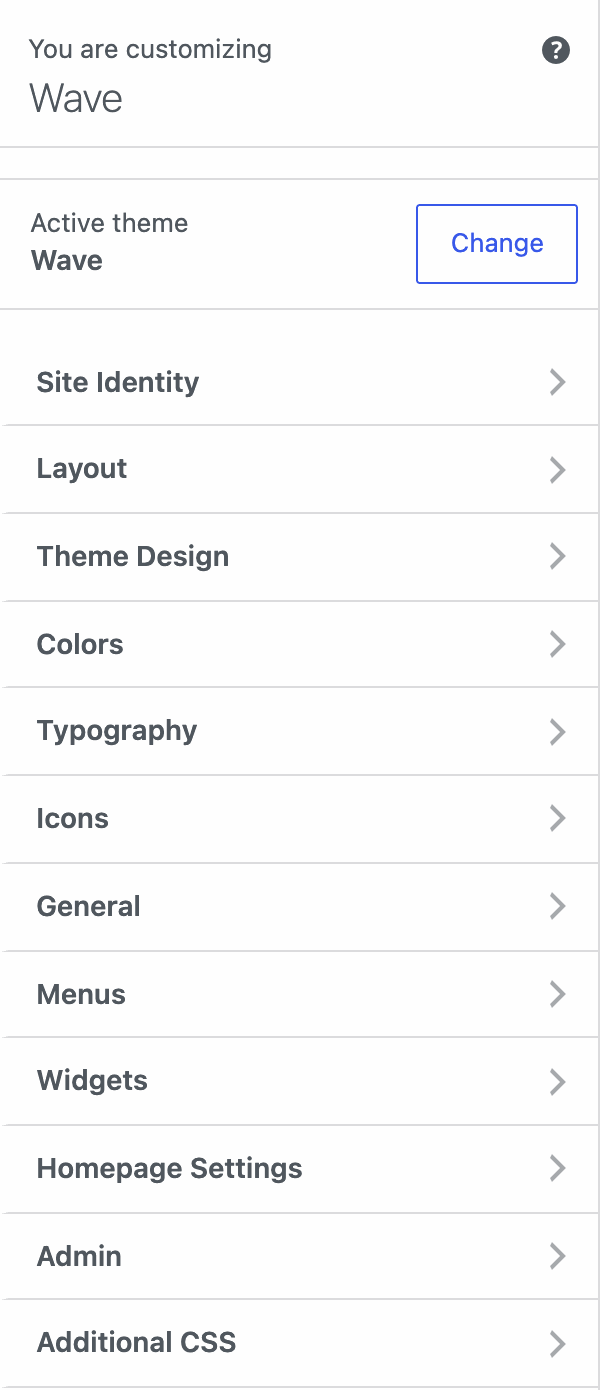
There is no EFGP menu in the WordPress admin sidebar. See the overview for a map of every option.
Next steps
- Using a Generate Market child theme? See Install a child theme and Theme design.
- To pick a setting to change, start with the overview.