
These options change the comment form and the comment list on single posts.
Where to find it
Go to Appearance → Customize → Layout → Post → Comment Form.
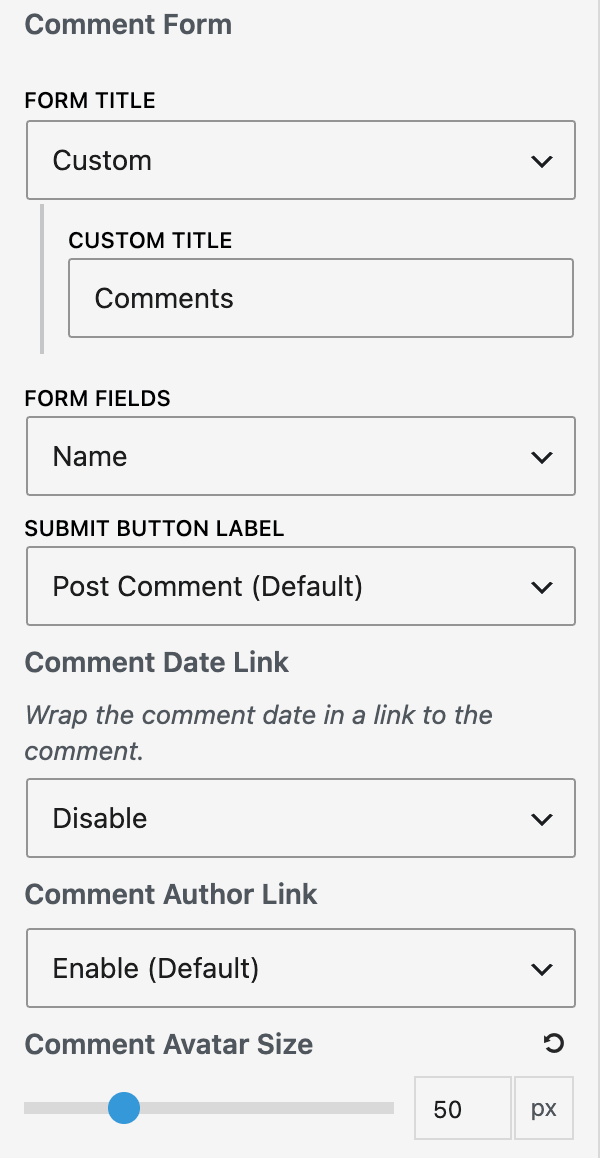
| Setting | Options | What it does |
|---|---|---|
| Form Title | Leave a Comment (Default) / Custom | Heading above the form. Custom Title sets your own text. |
| Form Fields | Name + Email + Website (Default) / Name + Email / Name + Website / Name | Which fields visitors fill in. |
| Submit Button Label | Post Comment (Default) / Custom | Text on the submit button. Custom Label sets your own text. |
| Comment Date Link | Enable (Default) / Disable | Wraps the comment date in a link to the comment. |
| Comment Author Link | Enable (Default) / Enable – New Tab / Disable | Controls whether the comment author’s name links to their website. |
| Comment Avatar Size | Slider from 1 to 200 px (default 50) | Size of avatars in the comment list. |
Change the form title
- Go to Appearance → Customize → Layout → Post → Comment Form.
- Set Form Title to Custom.
- Enter your text in Custom Title.
- Click Publish.
Good to know
- These options only work while Hide Comments Area is unticked in Single posts.
- If you remove the email field, WordPress no longer requires an email address for comments.
- Enable – New Tab opens author links in a new tab and adds
noopener noreferrer ugcto the link. - Enhance for GP also supports the FluentComments plugin for comments by logged-out visitors.
- If you choose Custom and leave the text empty, you cannot publish. The Customizer shows Enter the custom text, or choose a different option.
- If a Custom text is empty at the time of display, the default text is used.
- These options work only when GeneratePress is the active theme or the parent theme.