
These options apply to single posts of the type Post. Lists of posts are covered in Blog and archive lists.
Where to find it
Go to Appearance → Customize → Layout → Post. EFGP creates this section if GeneratePress does not provide it.
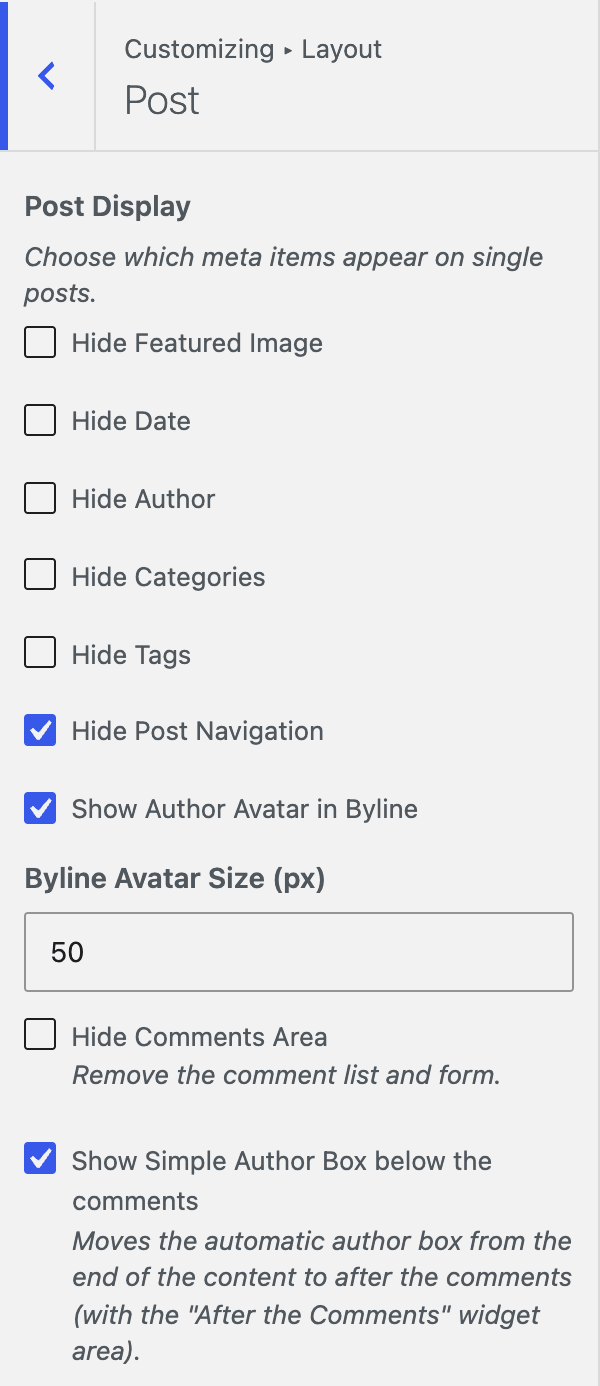
Hide items on single posts
Under Post Display, choose which meta items appear on single posts. Tick a box to hide that item.
| Setting | Options | What it does |
|---|---|---|
| Hide Featured Image | Checkbox (off by default) | Hides the featured image. |
| Hide Date | Checkbox (off) | Hides the post date. |
| Hide Author | Checkbox (off) | Hides the author name. |
| Hide Categories | Checkbox (off) | Hides the categories. |
| Hide Tags | Checkbox (off) | Hides the tags. |
| Hide Post Navigation | Checkbox (off) | Hides the previous and next post links. |
Show an author avatar in the byline
- Go to Appearance → Customize → Layout → Post.
- Tick Show Author Avatar in Byline.
- Set Byline Avatar Size (px).
- Click Publish.
| Setting | Options | What it does |
|---|---|---|
| Show Author Avatar in Byline | Checkbox (off) | Shows the author’s avatar before the byline. |
| Byline Avatar Size (px) | Number from 16 to 200 (default 50) | Avatar size. Only shown when the avatar is turned on. |
If the author has a profile image in the Simple Author Box plugin, that image is used.
Comments area
| Setting | Options | What it does |
|---|---|---|
| Hide Comments Area | Checkbox (off) | Removes the comment list and form from single posts. |
| Show Simple Author Box below the comments | Checkbox (off) | Moves the automatic author box from the end of the content to after the comments. It appears together with the After the Comments widget area. |
Good to know
- The comment form options in Comment form only apply while Hide Comments Area is unticked.
- Show Simple Author Box below the comments needs the Simple Author Box plugin.
- The After the Content and After the Comments widget areas are described in Widget areas.
- These options work only when GeneratePress is the active theme or the parent theme.