
The Icons section lets you swap the icons GeneratePress uses for the menu, search, categories, tags, comments and arrows. You can keep the default, upload your own, or hide the icon.
Where to find it
Go to Appearance → Customize → Icons. The section is at the top level of the Customizer, after Typography.
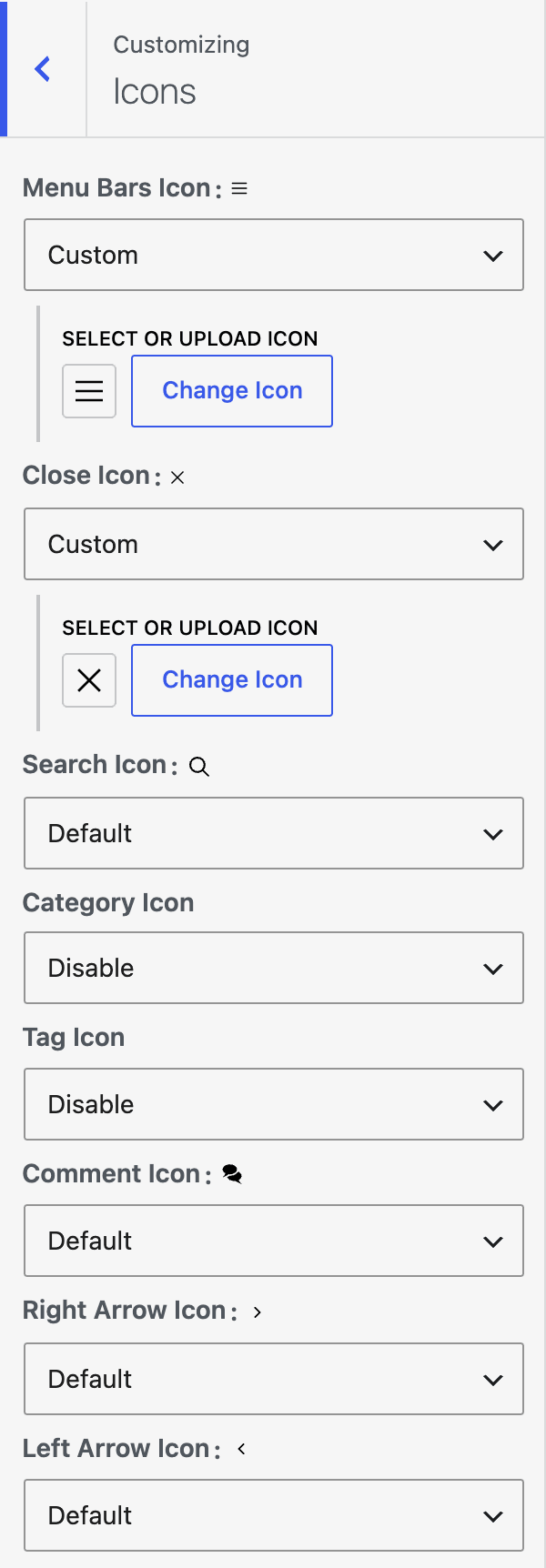
| Setting | Options | What it does |
|---|---|---|
| Menu Bars Icon | Default / Custom | The mobile menu toggle icon. |
| Close Icon | Default / Custom | The close icon. A custom close icon also replaces the X on the menu toggle when the menu is open. |
| Search Icon | Default / Custom / Disable | The search icon. |
| Category Icon | Default / Custom / Disable | The icon before categories. |
| Tag Icon | Default / Custom / Disable | The icon before tags. |
| Comment Icon | Default / Custom / Disable | The icon before the comments link. |
| Right Arrow Icon | Default / Custom / Disable | The right arrow icon. |
| Left Arrow Icon | Default / Custom / Disable | The left arrow icon. |
Menu Bars Icon and Close Icon have no Disable choice, because visitors need them to use the menu.
Use your own icon
- Go to Appearance → Customize → Icons.
- Set the icon to Custom.
- Click Select Icon. The Select or Upload Icon window opens.
- Choose a file from the Media Library or upload one, then click Use this icon.
- Check the live preview. Click Change Icon to pick another file.
- Click Publish.
Good to know
- SVG files work best. Uploaded SVG files must be 512 KB or smaller. Scripts and styles inside the file are removed, and the SVG is placed directly in the page.
- Other image types, such as PNG, are shown as normal images.
- If the file is not valid, the default icon is used.
- If you choose Custom and have not uploaded an icon, the icon that your active child theme comes with is used. If the theme has none, the default icon is used. An icon you upload always wins over the theme icon.
- If you choose Custom with no icon, you cannot publish. The Customizer shows Upload a custom icon, or choose a different option.
- These options work only when GeneratePress is the active theme or the parent theme.