
Generate Market child themes ship with a design: colours, typography, spacing and other GeneratePress settings. The Theme Design section lets you apply that design to your site, and go back to your own settings later.
There is no file to upload and no import button. Enhance for GP reads a file named efgp-design.json in your active child theme and lists which settings the theme controls. When you choose to use the theme design, your saved values for those settings are backed up and cleared, so GeneratePress falls back to the theme’s own defaults.
What it changes
- Only the GeneratePress settings that the theme’s design file lists. These are settings you would otherwise set in the Customizer, such as colours, typography and spacing.
- Nothing else. Your other GeneratePress settings stay as they are.
What is not imported
- Content: posts, pages and images.
- Menus.
- Widgets.
- Your logo.
- Your home page or any other page.
- Other GeneratePress options that the design file does not list.
To get demo content, menus or a home page, set them up separately. See Install a child theme.
Apply the theme design
- Go to Appearance → Customize → Theme Design.
- Under Design source, choose Use the theme design (your current settings are backed up).
- Check the live preview. Nothing is saved yet.
- Click Publish to apply it.
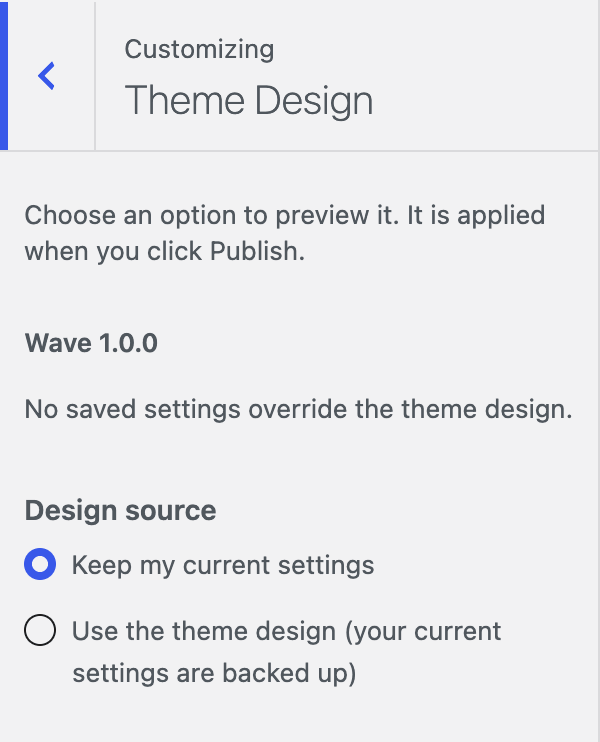
After you publish, the choice returns to Keep my current settings.
Design source options
| Option | What it does |
|---|---|
| Keep my current settings (default) | Changes nothing. |
| Use the theme design (your current settings are backed up) | Backs up your saved values for the listed settings, then removes them so the theme’s defaults apply. |
| Restore my settings from the backup | Puts your backed-up values back. Only shown when a backup exists. |
How the backup works
- There is one backup slot.
- The first time you use the theme design, your current values are saved as a backup. If a backup already exists, it is kept and not overwritten.
- Restore my settings from the backup puts back the backed-up values for the settings the theme lists, then deletes the backup.
- A listed setting that had no saved value at backup time goes back to its default when you restore. Settings outside the theme’s list are left alone.
- If you change any of those settings after using the theme design, those changes are lost when you restore.
- The backup is for your own safety. There is no export option.
Restore your settings
- Go to Appearance → Customize → Theme Design.
- Under Design source, choose Restore my settings from the backup.
- Click Publish.
Status lines
The section shows the theme name and version, then one of these lines:
- No saved settings override the theme design. Your site shows the theme design.
- 3 saved settings override the theme design. (the number varies) You have saved values of your own that take priority over the theme design.
If a backup exists, a third line reads Backup of your settings: followed by the theme name and version, and the date and time of the backup.
The admin notice
When saved settings override the theme design, a notice appears on the Dashboard and on Appearance → Themes: Your saved settings override the active theme’s design. It links to Review in the Customizer.
Click Dismiss to hide it. The notice is hidden per user and per theme version, and returns when the theme is updated to a new version. Only users who can edit theme options see it.
Good to know
- If the Theme Design section does not appear, the active theme has no valid
efgp-design.json. This happens with plain GeneratePress or a theme that does not include the file. It is not an error. - The file must belong to the active theme. If you switch themes, the section follows the new theme.
- Uninstalling Enhance for GP deletes the backup. It does not restore your settings first. See Uninstalling.