
These options change the text of every GeneratePress search form on your site and the label of the mobile menu button.
Where to find it
Go to Appearance → Customize → Layout → Primary Navigation.
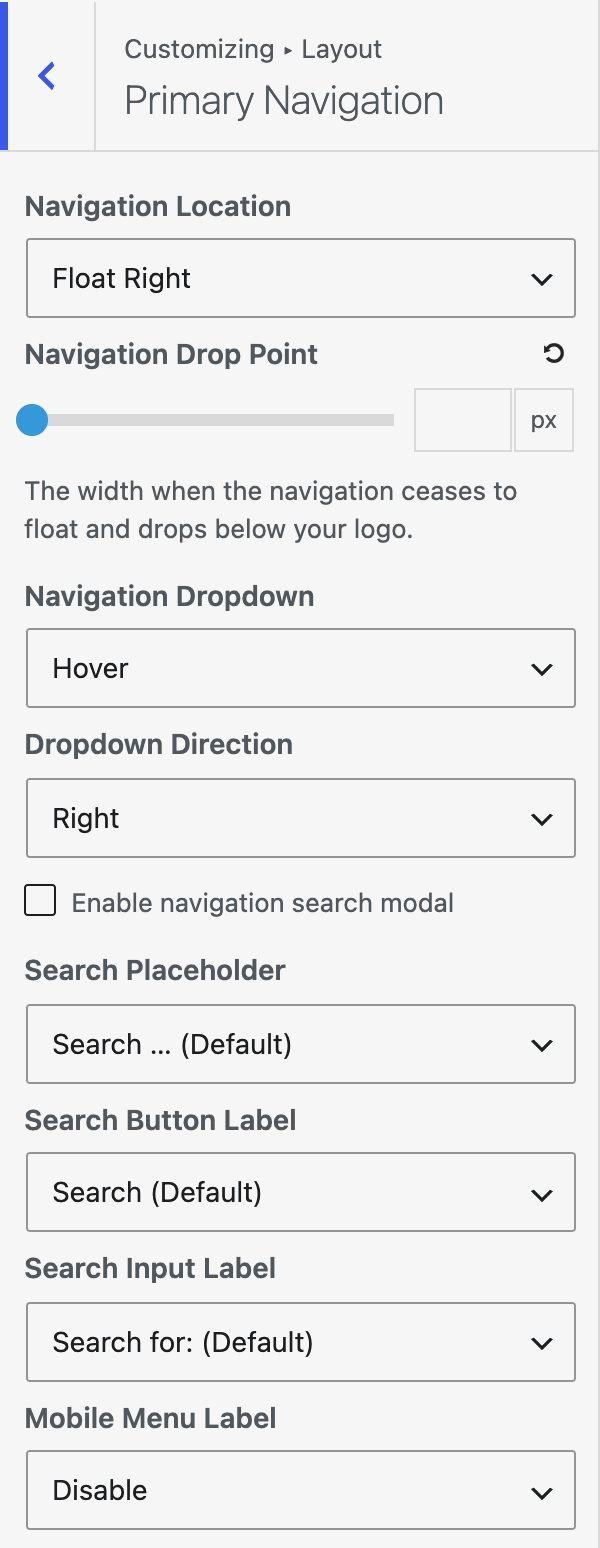
| Setting | Options | What it does |
|---|---|---|
| Search Placeholder | Search … (Default) / Disable / Custom | Placeholder text in the search field. Custom Placeholder Text sets your own. |
| Search Button Label | Search (Default) / Custom | Accessible name of the search button. Custom Button Label sets your own. |
| Search Input Label | Search for: (Default) / Custom | Label that screen readers read for the search field. Custom Input Label sets your own. |
| Mobile Menu Label | Menu (Default) / Disable / Custom | Text on the mobile menu button. Custom Mobile Menu Label sets your own. |
Change a label
- Go to Appearance → Customize → Layout → Primary Navigation.
- Set the option to Custom.
- Enter your text in the field that appears below it.
- Click Publish.
Good to know
- Search Button Label and Search Input Label have no Disable choice, because screen readers need them.
- The labels apply to every GeneratePress search form, not only the one in the navigation.
- If you choose Custom and leave the text empty, you cannot publish. The Customizer shows Enter the custom text, or choose a different option.
- These options work only when GeneratePress is the active theme or the parent theme.