
These options change the bottom of your pages.
Where to find it
Go to Appearance → Customize → Layout → Footer.
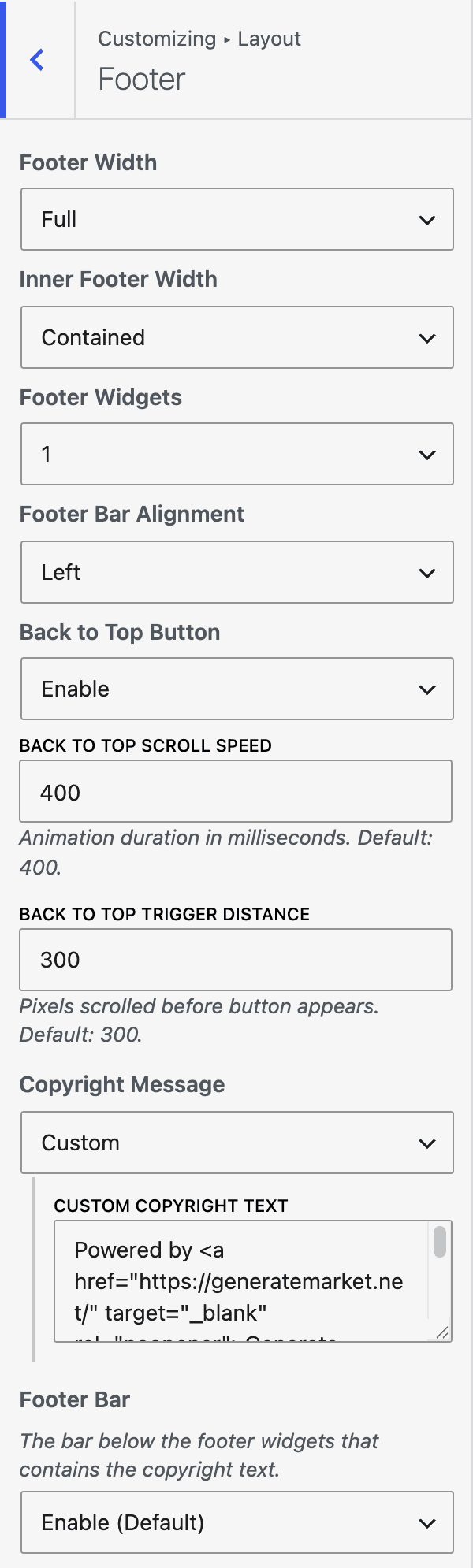
| Setting | Options | What it does |
|---|---|---|
| Back to Top Scroll Speed | Number, step 50 (default 400) | Animation duration in milliseconds. |
| Back to Top Trigger Distance | Number, step 10 (default 300) | Pixels scrolled before the button appears. |
| Copyright Message | Default / Disable / Custom | Disable empties the message and hides the copyright bar. Custom shows your text. |
| Custom Copyright Text | Text area | Your copyright text. Shown when Copyright Message is Custom. Basic HTML is allowed. |
| Footer Bar | Enable (Default) / Disable | The bar below the footer widgets that contains the copyright text. Disable removes the whole bar. |
Change the copyright text
- Go to Appearance → Customize → Layout → Footer.
- Set Copyright Message to Custom.
- Enter your text in Custom Copyright Text.
- Click Publish.
Good to know
- The two Back to Top options are only shown when the Back to Top button is enabled in GeneratePress. A value of 0 or below is ignored.
- If Custom is chosen and the text is empty, the default message is used.
- Disabling the Footer Bar also removes the copyright text.
- If you choose Custom and leave the text empty, you cannot publish. The Customizer shows Enter the custom text, or choose a different option.
- These options work only when GeneratePress is the active theme or the parent theme.